
Kirkpatrick Model
This small Articulate Storyline project was designed to teach new corporate trainers and instructional designers about the Kirkpatrick Model.
Learners click through an intuitive tabbed menu to display a summary of each of the four levels of evaluation. The level summaries disappear when the learner clicks the menu tabs a second time.

- Audience: New corporate trainers and instructional designers
- Tools Used: Articulate Storyline 360, Adobe Illustrator, Adobe XD, Google Docs
- Responsibilities: Instructional Design, eLearning Development, Graphic Design, Visual Design, Storyboarding, Prototyping
Process
Text-Based Storyboard
After the initial paper/pencil prototypes, I created a script using Google Docs. I checked the readability of the script before adding it to the text-based storyboard (also created with Google Docs). Descriptions of the graphics and interactivity for each screen were also included.


Visual Mockups
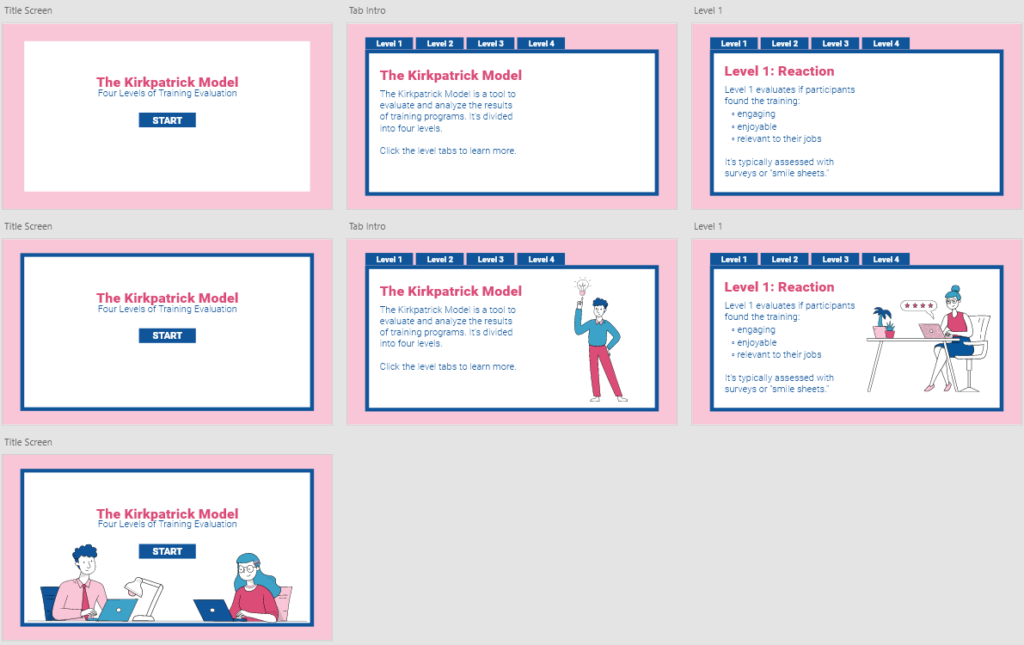
I selected a color palette for the project and used Adobe XD to create mockups of the screen layouts. I iterated until I was happy with the layouts, then began creating the graphics. I sourced the assets from an image repository. Then, I used Adobe Illustrator to edit and combine the vector assets, create complementary assets, and align colors with the project’s color palette. After completing the graphics, I added them to the Adobe XD mockups.
Interactive Prototype
Once I was satisfied with the look and feel of the digital mockups in Adobe XD, I began creating an interactive prototype in Storyline. I recreated the different tabs using slide layers and used the “button set” feature to ensure that learners could only select one tab at a time.
Full Development
After the initial round of feedback, I added a feature to allow learners to close layers by clicking the layer buttons a second time. This brings learners back to the home screen.

